
How to Use Collections to Organize and Sell Your Work
5 min read
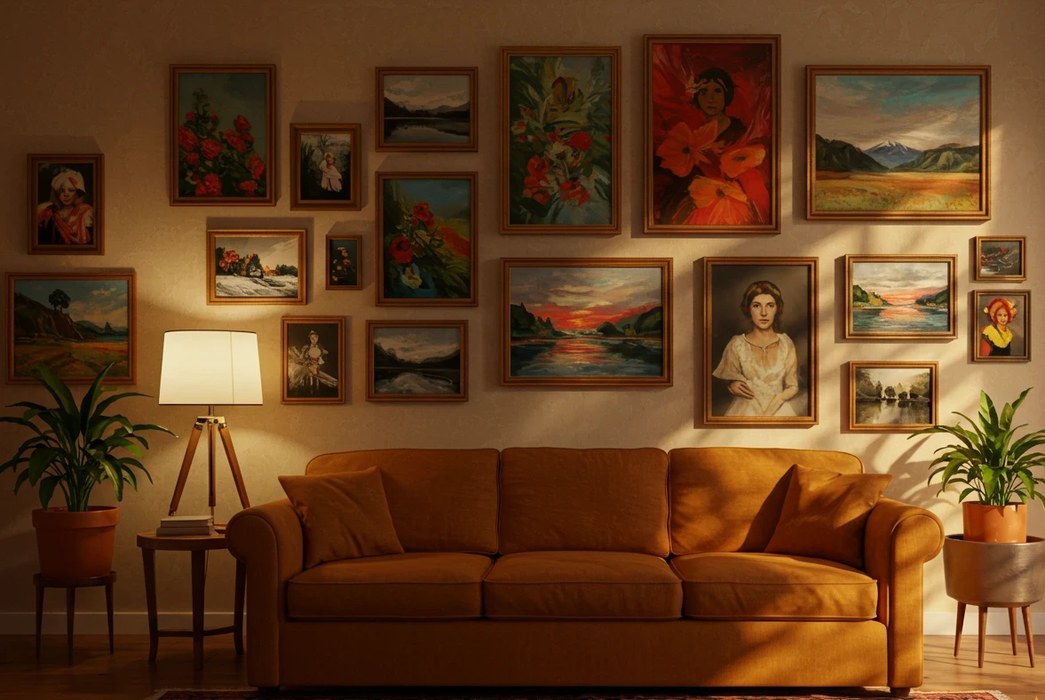
A catalog of 80 artworks with no organization is a wall of work. A collector browsing your portfolio doesn't know where to start. A gallery asking for "your coastal series" requires you to manually pick through everything. An art fair organizer requesting 15 pieces for a group show means 30 minutes of hunting.
Collections solve all of this. They're the organizational layer that sits beneath your full catalog and above individual artworks — letting you group work into coherent units for any purpose: a body of work, a series, a price tier, a gallery submission, a collector preview.
What Collections Are
A Collection in Fine Art Form is a named, curated group of artworks. Think of it like a folder with a purpose — except it doesn't move the artworks, it just groups them.
Each collection has:
- A name (e.g., "Coastal Series 2024," "Available Under $500," "For the Whitney Submission")
- An optional description
- A cover image (automatically set from the first artwork)
- A count of included artworks
Collections don't appear on your public portfolio by default. They're your working layer — used to power other features, including Viewing Rooms and reports.
Creating a Collection
- Go to Collections in the main navigation
- Click + New Collection
- Give it a name and optional description
- Browse and select artworks from the picker on the right — click any artwork to add it; click again to remove
- Click Create Collection
That's it. Your collection is saved and ready to use.
To edit a collection later: Open it, click Edit, add or remove artworks and update the name or description. Changes apply immediately — any Viewing Room or report based on this collection updates automatically.
Six Ways Artists Use Collections
1. Organize Work into Bodies of Work
Your catalog reflects everything you've ever made. Collections let you surface what belongs together.
- "Figurative Work 2023–2024"
- "Abstract Studies on Paper"
- "The Tide Series"
Use collections to group any coherent body of work — by subject, technique, material, era, or concept. When a curator asks for your recent work or a specific series, you have it ready.
2. Prepare a Gallery Submission
Most gallery submissions require 15–20 specific works. Create a collection for the submission:
- Name it: "Sideshow Gallery Submission — March 2026"
- Add the specific pieces you want to include
- Use the collection to generate a PDF report (Portfolio Report or Catalog Report)
- Send the PDF as your submission package
The collection stays in your records as a timestamped snapshot of what you submitted and when.
3. Create a Private Viewing Room for a Collector
Viewing Rooms are powered by Collections. When a collector expresses interest in your work, create a collection of relevant pieces and share it as a private Viewing Room.
- "Works for James — March 2026" → private room, shared by secure link
- The collector sees only those works, in a clean viewing experience, without needing to log in
- You can update the collection (swap in new work, remove sold pieces) and the room reflects the change immediately
See Setting Up Viewing Rooms for Collectors → for the full workflow.
4. Group Available Work by Price Range
Collectors often think in price ranges. Make it easy for them:
- "Originals Under $500"
- "Works $500–$2,000"
- "Major Works"
Share these as Viewing Rooms for collectors who've indicated a budget, or generate a price list report from each.
5. Manage Art Fair Inventory
Before a fair, create a collection of the work you're bringing to the booth:
- "Spring Art Fair — [Fair Name] 2026"
- Add all works going to the fair
- Mark them For Sale with correct prices
- During the fair, as pieces sell, update their status — the collection keeps the full booth picture intact as a record
After the fair, you have an exact record of what you showed, what sold, and what came back to the studio.
6. Build a Studio Visit Shortlist
Before a studio visit, curate a collection of the work you want to show:
- Include what's in the studio and available
- Add pieces that represent your current direction
- Send a Viewing Room link to the visitor in advance — collectors who preview the work before arriving tend to be more engaged
Collections and Reports
When you generate an artwork report — a portfolio PDF, catalog, price list, or consignment sheet — you can select a collection as the source. This means your PDF contains exactly the pieces you choose, in the order you want.
This is much faster than the alternative: manually filtering your catalog and hoping you got everything right.
Keeping Collections Organized
A few practices that keep your Collections section useful:
Name collections clearly and specifically. "New Work" ages badly. "Studio Work, Jan–Mar 2026" is findable a year from now.
Archive rather than delete. If a collection served its purpose (the fair is over, the submission was sent), keep it. It's a record of what you were doing at that moment in your practice.
Review active collections before a show. Make sure sold pieces are marked sold and unavailable works are updated. A Viewing Room showing a sold piece as available is a minor embarrassment.
Don't over-organize. You don't need a collection for every possible grouping. Create them when you have a specific use case: a room to share, a report to generate, a submission to prepare.
Frequently Asked Questions
Do collections appear on my public portfolio? Not automatically — collections are your working layer. They power Viewing Rooms and reports, but don't create public-facing pages by default. Your public portfolio shows individual artworks based on their visibility settings.
Can an artwork be in more than one collection? Yes. An artwork can appear in as many collections as makes sense — your "Available Work" collection and your "Coastal Series" collection can both include the same piece.
What happens to a collection when an artwork sells? The artwork stays in the collection; only its status changes to Sold. If you're using the collection for a Viewing Room, the sold badge will appear on that piece. To keep the room showing only available work, remove the sold piece from the collection — or create a separate "available only" filter when selecting artworks.
How many artworks can a collection hold? There's no hard cap, but practically speaking, most collections work best at 5–50 pieces. A 200-piece collection is hard to browse as a Viewing Room and rarely serves a specific purpose well.
Can I share a collection directly, or does it have to become a Viewing Room first? For sharing with external contacts (collectors, galleries, press), create a Viewing Room backed by the collection — that's the share-ready format. For internal use (reports, personal organization), you work with collections directly.
What's Next?
Collections become most powerful when connected to Fine Art Form's other features:
- Create a private Viewing Room — Setting Up Viewing Rooms for Collectors →
- Generate a catalog or portfolio report — Creating Artwork Reports and Catalogs →
- Prepare for an art fair — Art Fair Season Prep →
Need more help? Browse all guides or contact our team.