
How to Photograph Your Artwork Professionally
7 min read
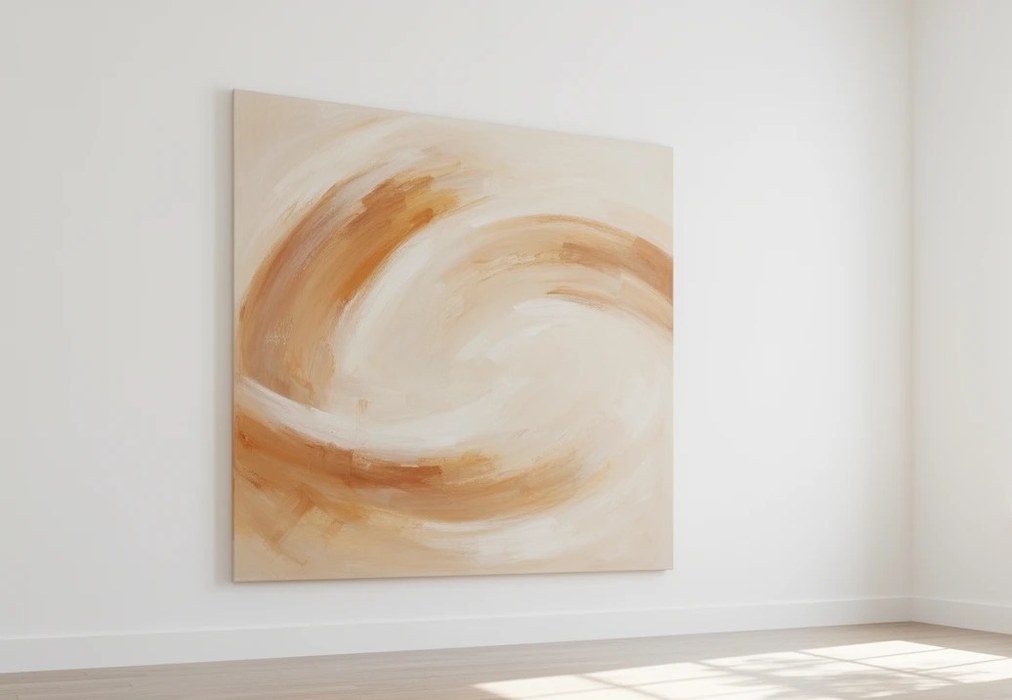
Your artwork might be exceptional. But if the photos are dark, blurry, or color-shifted, collectors won't give it a second look. Online, your photographs are your work — at least until someone sees it in person.
The good news: professional-quality artwork photography doesn't require a studio, expensive equipment, or a photography course. It requires the right light, a stable camera, and a few minutes of care. This guide covers everything you need.
Why Photography Quality Is the #1 Thing You Can Control
Gallery walls and art fairs give collectors the real experience. Your portfolio site gives them a photograph. That photograph has to do a lot of work:
- Convince someone the colors are accurate
- Communicate scale without a ruler
- Show texture and surface quality
- Project the kind of professionalism that makes someone comfortable spending $1,000 or $10,000
A poorly lit photo with a shadow across one corner, a slight blue cast, or the painting shot at a slight angle will kill buyer confidence instantly — usually without them knowing why. The work looks amateur even if it isn't.
The investment in good photos pays off every time someone visits your portfolio.
Equipment You Already Have (or Can Get for Under $30)
Your phone is probably fine. Modern smartphone cameras — anything made in the last 4–5 years — are fully capable of excellent artwork photography. You don't need a DSLR.
What you actually need:
- A phone or camera with a clean lens (wipe it before every shoot)
- A tripod or phone stand (~$15–25 on Amazon)
- Natural or artificial daylight-balanced light
- A neutral background (more on this below)
- Painter's tape or a wall to hang work flat
That's it. The most important investment is the tripod — hand-holding introduces camera shake, and sharp photos require stability.
Part 1: Light Is Everything
Option A: Natural Light (Best for Most Artists)
Find indirect north light. A north-facing window on an overcast day is the gold standard for artwork photography. It's soft, diffuse, and color-balanced. Avoid:
- Direct sunlight (harsh shadows, blown highlights)
- South or west windows in the afternoon (warm/orange cast)
- Mixed light sources (one window + overhead fluorescent = color disaster)
Best conditions:
- Overcast day (clouds diffuse sunlight naturally)
- Morning or evening (lower sun angle)
- North or east window, indirect angle
Set up your work facing the light — not perpendicular to it. Position yourself (and the camera) between the window and the artwork, slightly to the side to avoid blocking light.
The golden rule: if you can see a glare or hot spot on the artwork from where you're standing, the camera can too. Move until it disappears.
Option B: Artificial Light (Any Time, Any Day)
If you don't have reliable natural light, buy two daylight-balanced LED bulbs (5000K–5500K color temperature) and two cheap clamp lights. This is the setup that most professional product photographers use for small to medium pieces.
Setup:
- Place one light at 45° to the left of the artwork
- Place one light at 45° to the right
- Same height, same distance, same wattage
- Keep overhead lights and other sources off
Two lights at equal distance and angle will eliminate directional shadows and give you even, neutral coverage.
What to avoid:
- Yellow/warm bulbs (2700K–3000K) — they shift colors dramatically
- A single light source — it always casts one shadow
- Mixed color temperatures (natural light + warm bulbs)
Part 2: Backgrounds
The background in your artwork photos should be invisible — meaning the viewer's eye goes straight to the work, not to what's behind it.
The best backgrounds:
- Neutral gray — the industry standard; doesn't compete with any color palette
- Matte white — clean, minimal, but shows shadows more
- Matte black — dramatic, works well for dark or moody work
- Natural linen or canvas texture — subtle warmth, popular for fine art photography
Avoid:
- Your living room wall (unless it's already one of the above)
- Colored walls (they cast color onto your work)
- Patterned or textured backgrounds (distracting)
- Anything that wrinkles or creases visibly
Budget solution: Pick up a roll of matte seamless paper in the color of your choice (~$25 at a camera shop or online). A 4-foot roll is enough for most work. Tape it to the wall, let it fall to the floor, and you have a professional seamless background in 5 minutes.
For smaller works (up to about 24×24"), a large piece of foam core board in white, gray, or black works perfectly and costs under $5.
Part 3: Hanging or Positioning the Work
Always shoot flat work flat — not propped against the wall at an angle. Keystoning (where the top or bottom of the work is further away from the camera) will make rectangular work look trapezoidal and is very hard to correct in editing.
Two approaches:
Hang it on the wall: Use a level and two small nails. The work is flat, you can adjust height easily, and the camera shoots straight at it. This is the most reliable method.
Lay it on the floor: For large or heavy work, lay it flat and shoot from directly above. Use a tripod and position yourself above the center of the piece. Make sure shadows from your body don't fall on the work.
Level check: Use your camera's built-in grid lines to confirm the canvas edges are parallel to the frame edges before you shoot.
Part 4: Camera Settings
Using a Smartphone
- Turn off Portrait Mode — depth-of-field blur is flattering for people, disastrous for flat artwork
- Turn on grid lines (Settings → Camera → Grid) — use them to align canvas edges with the frame
- Lock focus and exposure: Tap and hold on the artwork until you see "AE/AF Lock" — this prevents the camera from re-adjusting mid-shoot
- Don't zoom in digitally — instead, move the phone closer. Digital zoom destroys quality
- Clean your lens — a fingerprint-smudged lens will soften everything
Using a DSLR or Mirrorless Camera
- Aperture: f/8–f/11 for maximum sharpness and even focus across a flat plane
- ISO: As low as possible (100–400) — lower ISO = less grain
- Shutter speed: With a tripod, shoot at 1/60s or slower; use a timer or remote to avoid camera shake
- White balance: Set to match your light source (Daylight/5500K for natural light; Custom/K for your specific bulbs). Do not use Auto White Balance — it will shift from shot to shot
- RAW format: If your camera shoots RAW, use it. You can correct white balance and exposure in post without losing quality. JPEG locks those values in
Part 5: Dealing with Glare
Glare is the enemy of artwork photography — especially for oil paintings, varnished work, or anything behind glass.
For oil and varnished work:
- Position lights at a wider angle (60° instead of 45°) to push glare off the edges of the frame
- Use diffusion: cover your light source with a piece of thin white fabric or a diffusion panel
- Polarizing filters (on both the light AND the camera lens) eliminate glare almost entirely for professional results — this requires a DSLR but produces perfect results
For work behind glass:
- Remove the glass if at all possible. Glass adds glare, reflection, and a color shift. A photo without glass will always look better
- If you can't remove it, position lights at a steep angle and shoot with as much distance between camera and glass as possible
For sculpture and three-dimensional work:
- Three-dimensional work benefits from directional light that creates shadows — this shows form. Your two-light setup may be too flat
- Try a single key light at 45° with a fill card (white foam core) on the opposite side to soften shadows without eliminating them
Part 6: Cropping and Color Accuracy
Crop to the Edges
When you upload artwork photos to Fine Art Form, the platform crops to a square by default for grid views — but the full image is preserved. Before uploading:
- Crop your photo so that the canvas/paper edge is visible but the background is minimal
- Make sure the crop is exactly square to the work (not slightly rotated)
- Include the full work — don't crop off any edges
If the work is rectangular, keep the full rectangle and let Fine Art Form handle the grid crop.
Color Accuracy
Color accuracy is the hardest part of artwork photography to get right — and the most important for selling work.
The gray card method: Place an 18% gray card (or any neutral gray reference) in front of your work for the first shot of a session. In editing, use the eyedropper tool to click the gray card — this corrects the white balance. Remove the gray card and shoot the rest of the session.
Editing tools that work:
- Lightroom (mobile app is free): adjust white balance, exposure, and saturation; excellent for RAW files
- Snapseed (free, iOS/Android): White Balance and Selective tools are powerful
- VSCO (free): simpler editing, good for consistent style across a body of work
- Photos app (built-in): adequate for minor corrections
What to adjust:
- White Balance (Temperature/Tint) — match what your eyes see in person
- Exposure — paintings should look as they do in good viewing light, not brighter or darker
- Remove any vignetting (edge darkening)
- Adjust contrast if needed — but be conservative; over-editing changes the work
What to avoid: Boosting saturation or vibrance. It looks better on screen for a moment but misrepresents the work. Buyers who receive work that looks different from the photo are disappointed buyers.
Part 7: Multiple Shots to Tell the Full Story
Plan to take at least three versions of each artwork:
1. The main shot Clean, full work, no distractions. This is the hero image that goes on your portfolio.
2. The detail shot Get close. Show brushwork, texture, material quality — the things that a collector can't see in a full shot. For large work, take 2–3 different detail shots from different areas.
3. The scale shot Show someone's hand holding the work, or hang it in a room with a recognizable object for scale. Buyers often struggle to visualize scale from dimensions alone. A hand next to a 4×4" painting or a sofa next to a 48×60" canvas communicates immediately.
Optional:
- Installation shot (artwork hung in a room with real context)
- Back of canvas (for documentation/insurance — very useful for records)
- Work-in-progress shots (great for social media, not the portfolio)
Part 8: Uploading to Fine Art Form
When you're happy with your photos:
- Go to My Artworks → Edit (or add a new artwork)
- In the Images tab, drag and drop or click to upload
- Set the primary image — this is what shows in grid views, reports, and Viewing Rooms
- Add additional images (detail shots, installation, scale) — collectors can browse all of them on the artwork detail page
- For size optimization: Fine Art Form accepts JPG and PNG. Files under 10MB upload instantly. Larger files are accepted but may take longer.
Fine Art Form automatically generates thumbnail sizes for grid views, so you don't need to resize before uploading — just use the highest-quality version you have.
Frequently Asked Questions
Can I use my iPhone or will it look amateur? iPhone (and most Android flagship cameras) produce professional-quality results when used correctly — meaning with a tripod, good light, and proper settings. The camera is rarely the limiting factor. The light almost always is.
My painting is very large (48"+ on a side). How do I photograph it? Lay it flat on a clean floor and shoot from directly above, using a tripod extended as high as possible or a ladder. Alternatively, hang it on a wall and back up as far as you can — you can't fix keystoning caused by shooting upward at an angle. Some artists hire a photographer for very large work; for everything else, the methods above work.
What file format should I upload — JPG or PNG? JPG for most work — it's a smaller file and the compression is invisible at artwork photography quality settings. Use 85–95% quality. PNG is useful for very high-contrast work or if you're keeping a maximum-quality archive (files will be larger).
How do I photograph work with lots of metallics or reflective surfaces (gold leaf, foils, mirror elements)? This is genuinely hard to do perfectly without professional lighting. For a portfolio-quality shot: polarizing filter on the camera, lights at wide angles, minimal glare as your target. Show the reflective quality in a detail shot taken at an angle that shows the reflection intentionally rather than hiding it.
My photos look great on my phone but not on my laptop. What's happening? Different screens show colors differently — this is called color profile variation. Export your photos in sRGB color space (most editing apps have this option on export) and they'll look consistent across most displays. Your phone's screen may also be boosting saturation; check your phone's display settings.
How often should I rephotograph my work? When your light setup or process improves significantly. If you've been shooting in bad light for a year and then set up a proper two-light system, it's worth going back and rephotographing your most important works. Your portfolio's weakest photos set the tone.
What's Next?
With clean, professional photos uploaded:
- Write compelling descriptions — Smart Descriptions: Let Fine Art Form Write for You →
- Price your work with confidence — How to Price Your Artwork →
- Set up your portfolio site — Setting Up Your Portfolio Site →
Need more help? Browse all guides or contact our team.